
How to find large files on Windows with DiskBOX
When a drive is nearly full, start by measuring where the space went. DiskBOX reads your selected local drive or folder and lets you inspect the completed scan in several views. The browser demo uses sample data; it cannot measure your computer.
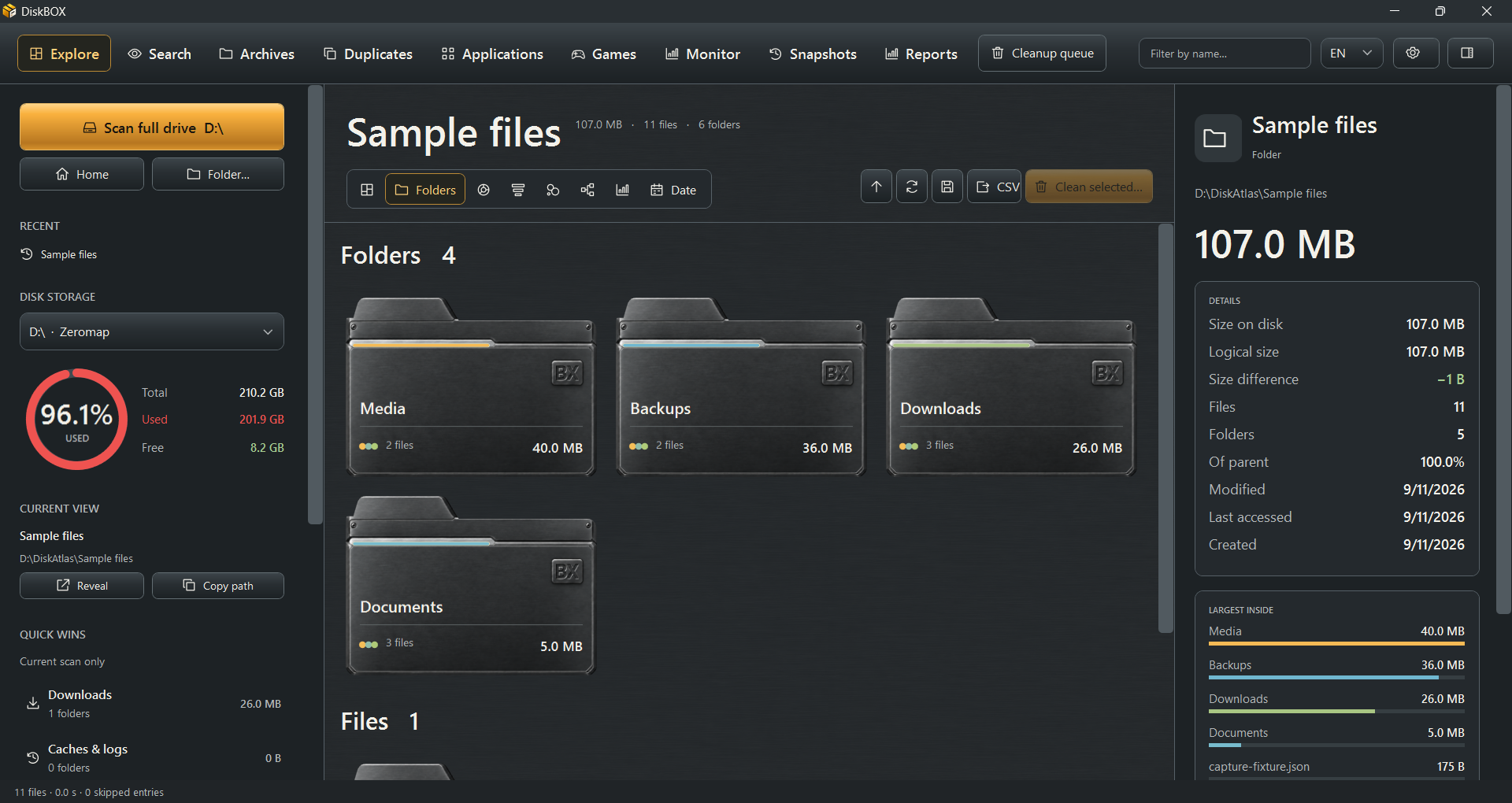
Choose a useful scan scope
Open the licensed Windows app and choose a drive or folder in Explore. Scanning a known downloads or project folder can answer a narrower question without examining the entire drive. Wait for completion or read the partial-result and skipped-entry notices.
Locate the largest directories
Use the treemap or size ranking to see which folders dominate the selected scope, then drill into them. Check the full path in the inspector. A folder total includes its descendants: do not add it to the sizes of the same files again.
Find the actual files
Select a File Types category to see matching files from the completed scan, or use advanced search to combine name/path, extension, size and modification dates. Review the results page by page and open a selected file’s folder in Explorer when you need more context.
Review a specific cleanup choice
If you recognize an item you no longer need, choose Clean selected… and inspect its full path in the cleanup queue. Wait for validation and give the separate Recycle Bin confirmation only after checking the selection.